
A Little Pumpkin Is On The Way Baby Shower Website Invitation | Girl Pink Bow Baby Shower Invite | Editable Canva Website with RSVP
$13.60$24.73

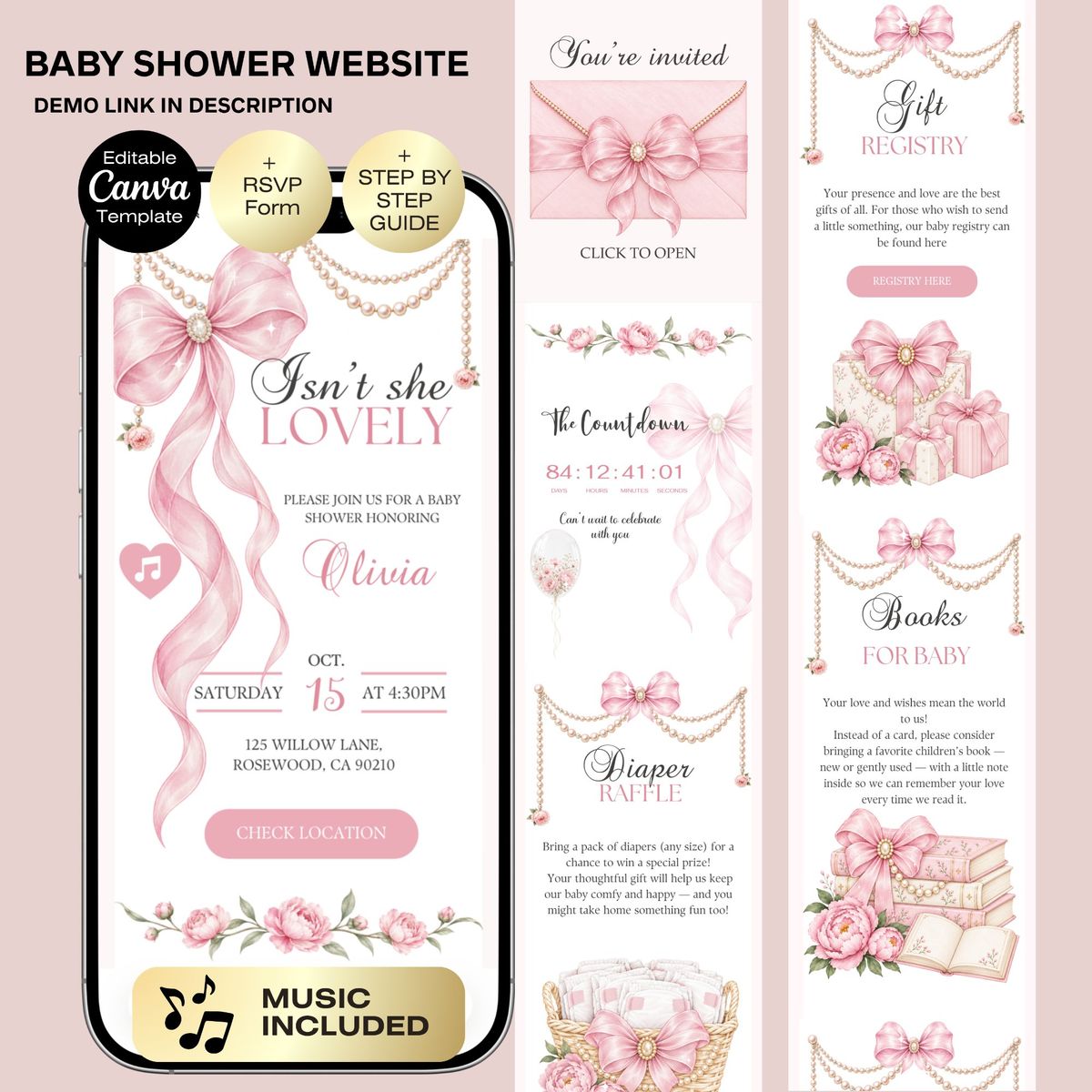
Pink Bow Baby Shower Website Invitation | Isn't She Lovely Pearl Princess Theme | Editable Canva Template for Baby Girl and Online RSVP Form 🔗 Live Demo Website: 👉 https://joyvastudio.my.canva.site/lovely-bow-baby-shower ✦••——————————————••✦ 🎀 Isn't She Lovely? A Little Princess Is on Her Way! Celebrate your baby girl with this Pink Bow Baby Shower Website Invitation, featuring a delicate pink palette, pretty bows, and pearl details. This sweet, girly princess theme brings a soft and elegant touch to your celebration, all in one digital invitation your guests can open and explore. Perfect for an “Isn't She Lovely” baby shower, pink bow celebration, pearl-themed shower, or a princess-inspired welcome for your little girl. Personalize the template in Canva, publish it as a website, and share one beautiful link with your guests. No coding or design experience needed. ✦••——————————————••✦ 🎀 Personalize It Your Way ✔ Edit the name, date, time, and event details ✔ Customize text, fonts, and colors ✔ Adjust most design elements to suit your celebration ✔ Personalize your RSVP Canva Form ✔ Edit on desktop, tablet, or mobile ✦••——————————————••✦ 🤍 Website Sections • Baby shower invitation and celebration details • Online RSVP through a Canva Form ✦••——————————————••✦ ✨ Why Joyva Studio? • A sweet invitation experience with pink bows and pearl details • A memorable digital alternative to traditional invitations • Easy customization with a free Canva account • Publish your invitation online and share it with your guests • Designs created with care by Joyva Studio ✦••——————————————••✦ 📱 How It Works 1. Purchase this listing. 2. Instantly download the PDF containing your Canva access link. 3. Open the template in your free Canva account. 4. Customize your invitation. 5. Publish it as a website and share your unique link or QR code with your guests. ✦••——————————————••✦ ❓ Frequently Asked Questions Do I need Canva Pro? No. You can customize this template with a free Canva account. What can I edit? You can edit text, fonts, colors, event details, and most design elements. How does RSVP work? Guests can respond through the embedded Canva Form. Responses are collected without requiring Google Forms or another external service. Can I edit it on my phone? Yes. You can customize your invitation using Canva on desktop, tablet, or mobile. How do I send the invitation? Publish your customized template as a website, then share the link or QR code with your guests. ✦••——————————————••✦ 📥 Instant Digital Download This is a digital product. No physical item will be shipped. ✦••——————————————••✦ 🔒 Terms of Use • Instant digital download. No physical product will be sent • Personal use only. Do not resell, share, copy, or redistribute • The artwork and visuals included in this template are uniquely created for Joyva Studio and are protected by copyright • Purchase does not transfer ownership or copyright of the artwork • No refunds due to the nature of digital products SEO Keywords: pink bow baby shower website invitation, isn't she lovely baby shower template, pearl princess baby shower invitation, girly pink Canva invitation, baby girl digital invitation with RSVP, editable coquette baby shower website
Your guests open one link with the story, event details, RSVP, gallery and directions. Everything looks great on a phone.
Open full screen demoSome interactive features like the RSVP form only work in the full demo. Open it here
Still unsure about something? The Joyva assistant is one click away.
You will receive instant access to your editable Canva website template along with detailed instructions on how to customize and publish it.
No. All templates are designed to work with a free Canva account.
Yes. Once added to your Canva account, you can edit it as often as needed.
Absolutely. You can upload your own photos and replace any existing images in the template.
Sign in to Invitarium first, then open Sarah's shared project and make your copy. Double-click the music-player project, replace the audio with an MP3 under 20 MB, and choose Copy link. In Canva, select the music icon, choose Edit link, paste the finished player link, then scale it down to fit the circle.
Select the hidden YouTube frame and increase its transparency so you can see it. Click an empty area so no other element is selected, then paste your YouTube link into the hidden video frame. Canva should embed the video, not add a regular hyperlink. Resize it until its play button sits over the decorative play button, then return its transparency to 0%.
No. Canva websites currently only allow music to play after a visitor clicks the play button.
If you're using a Canva form: Click the form on the Canva editing page, and a horizontal menu will appear at the top with the "Responses" option. You can click it to track all responses there, with the ability to link to a sheet. On mobile, this horizontal menu will be at the bottom.\n\nIf you're using a Google Form: On the same form editing page, you can find the "Responses" tab at the top middle. You can also enable email notifications by clicking on this tab, then the three dots, then enabling email notifications.
A Little Pumpkin Is On The Way Baby Shower Website Invitation | Girl Pink Bow Baby Shower Invite | Editable Canva Website with RSVP
Princess Baby shower Invitation website with RSVP | Pink Gold Fairytale Baby shower | A little princess is on her way | Royal baby shower

Classic Winnie Pooh Baby Shower Invitation Website with RSVP | Girl Pink Baby Shower | Baby Shower Invitation Theme | Digital Download

Berry sweet Baby Shower Invitation website + RSVP | Strawberry Baby Shower | Pink Bow baby shower | Coquette Girl Baby Shower digital invite
